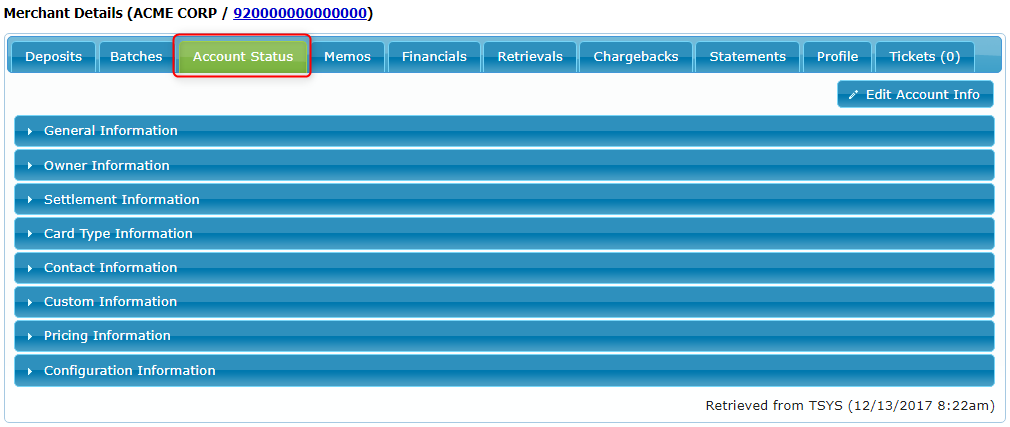
The Account Status tab on the Merchant Details page contains several sections which show different categories of Merchant data:
To manage the Account Status tab sections go to Manage > Administration > Processors > Account Status Tab.
The Account Status Sections Customization page will open showing each of your processors on a separate tab:
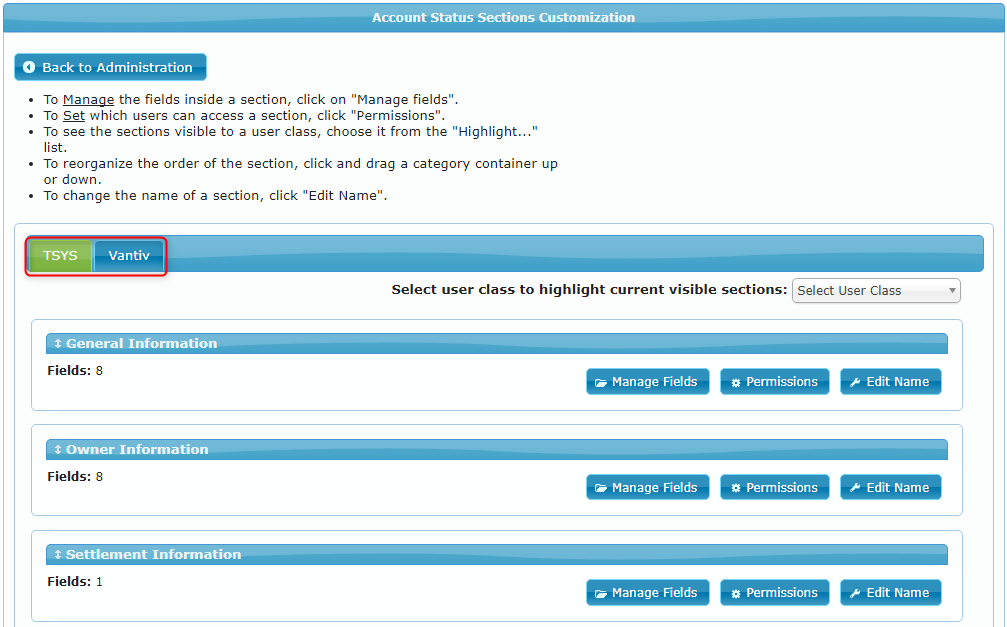
For each processor, you may change the order of the sections, the section permissions, and the section names.
Within a section, you may change the order of the section fields, the field permissions, and the field names. Each field may also be moved to a different section if needed.
Managing Account Status Sections
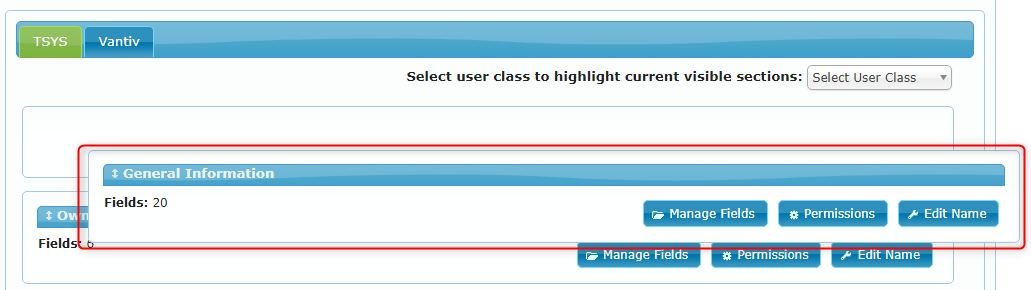
To change the position of a section, click and drag the section up or down:
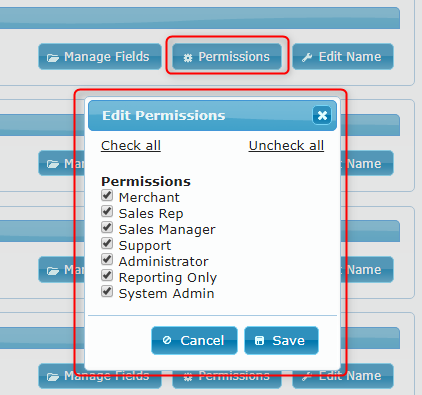
To change the section's permissions, click on the Permissions button, check or uncheck the User Classes as required, and click Save:
To view the sections which are visible to a specific User Class, select that class using the drop-down in the top-right corner:

The page will then refresh automatically and show only the sections which are visible to the selected User Class.
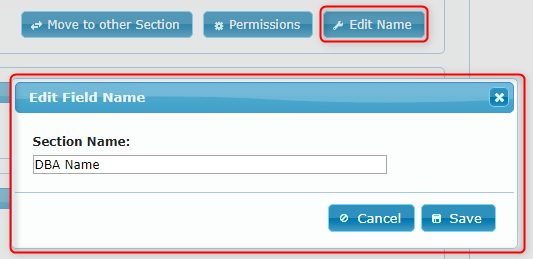
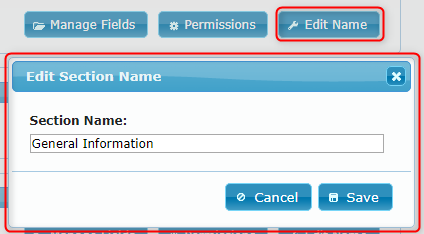
To change the name of a section click on the Edit Name button, enter the new section name, and click Save:
Managing Account Status Fields
To manage the fields for a specific section, click on the Manage Fields button for that section:

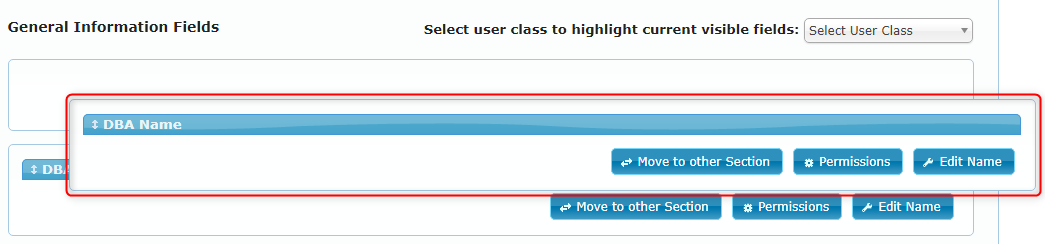
To change the position of a field within the field list, click and drag the field up or down:
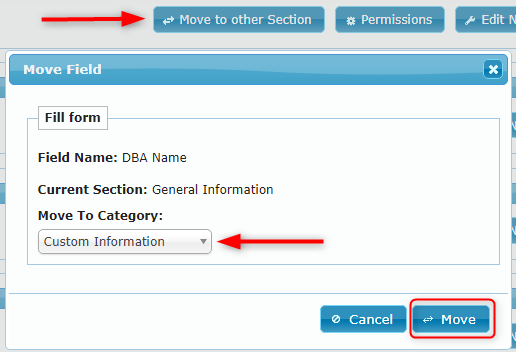
To move a field to another section, click on the Move to other Section button for that field, select the required section, and click Move:
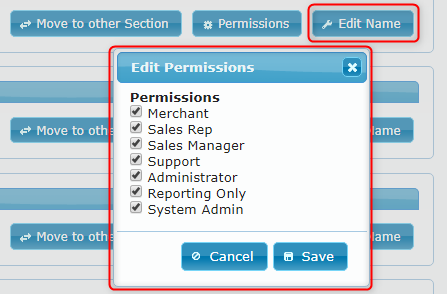
To change the field's permissions, click on the Permissions button, check or uncheck the user classes as required and click Save:
To view the fields which are visible to a particular user class, select that class using the drop-down in the top-right corner:

To change the name of a field click on the Edit Name button, enter the new field name, and click Save: