A lead note can be edited by the user who created it. To edit a lead note click on the pencil icon on the note:

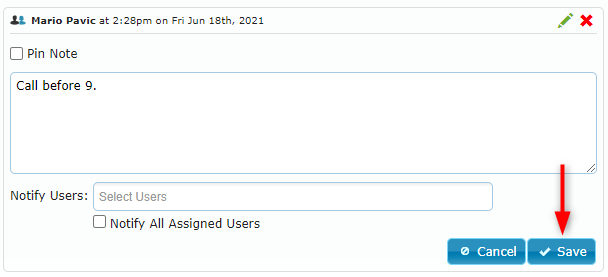
You can now edit your note and save the changes:
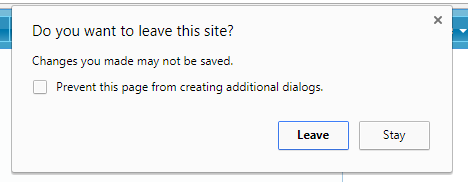
Note: If you attempt to leave the page or close the browser tab while the note is still open, a warning message will appear as shown in the below image:
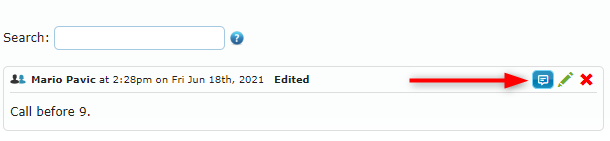
Once your changes are saved, the note will display a history button that allows you to view the changes in a popup window:
Here is an example of the popup window that shows the changes made to the lead note:

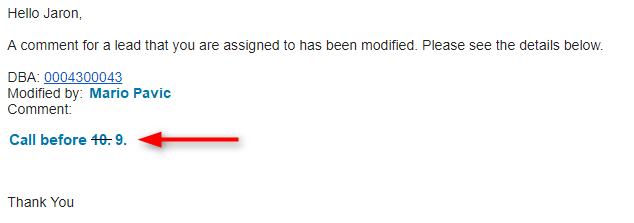
In case you selected users to be notified of the new edits, those users will also see the changes in an email notification: